
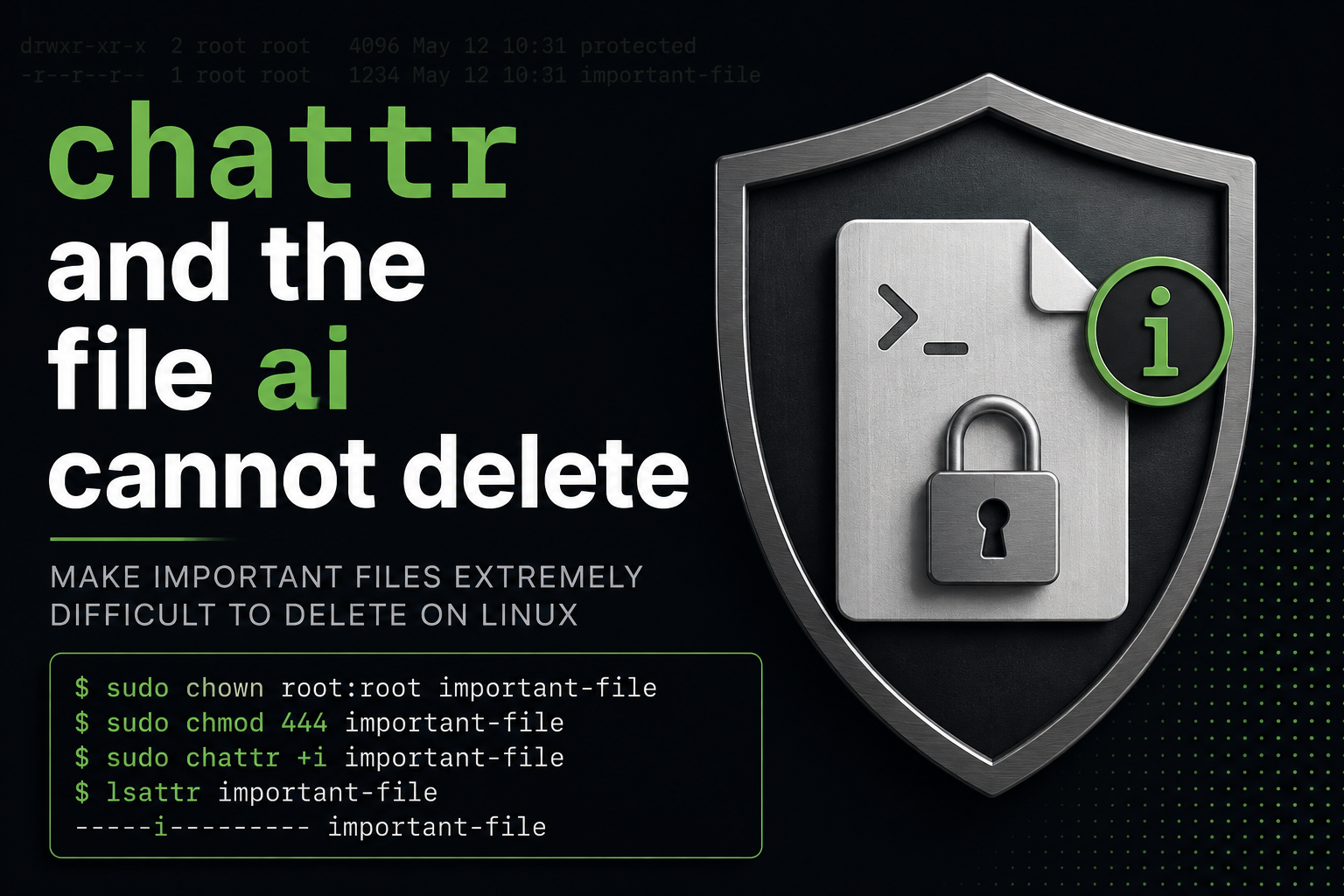
Linux permissions are good at controlling who can read and write a file, but they are not always as good at protecting against deletion as people assume.
If you have an important file that should remain readable but be extremely difficult to delete accidentally, Linux gives you a few useful layers of protection. You can even structure the machine so ordinary sudo access is insufficient to remove that protection, while someone with the actual root password still can.
Start With Normal Permissions
Suppose we have a file called:
/protected/important-fileA reasonable starting point is to make it owned by root and readable by everyone:
sudo chown root:root /protected/important-file
sudo chmod 444 /protected/important-file
That gives the file these effective permissions:
-r--r--r--Nobody can modify the contents through normal file permissions.
There is an important catch, however.
On Unix-like systems, deleting a file is primarily controlled by the permissions on the directory containing the file, not by the permissions on the file itself.
That means a user may be unable to write to a file but still be able to delete it if they have sufficient permissions on the directory.
So chmod 444 is not really deletion protection.
The Immutable Attribute
Linux filesystems such as ext4 support an additional attribute called immutable.
You can apply it with:
sudo chattr +i /protected/important-fileCheck it with:
lsattr /protected/important-fileYou should see something similar to:
----i--------- /protected/important-fileThat i is the important part.
An immutable file cannot normally be:
- modified
- overwritten
- truncated
- renamed
- deleted
Even root gets an error from an ordinary attempt to remove it:
sudo rm /protected/important-filewhich will normally return:
rm: cannot remove '/protected/important-file': Operation not permittedThat makes chattr +i particularly useful for files that should survive accidental administrative mistakes, buggy scripts, bad deployments, cleanup jobs, or an overly enthusiastic rm.
To intentionally remove the protection, root must first clear the attribute:
chattr -i /protected/important-file
rm /protected/important-file
That extra deliberate step is exactly what makes immutable files useful.
But What About sudo?
Here is where things get interesting.
Linux itself does not distinguish between someone who became root with:
su -and someone who ran:
sudo bashIn both cases, the process ultimately runs with UID 0.
The filesystem sees root.
It does not know or care how you got there.
So you cannot create a filesystem permission that means:
root through
sumay delete this file, but root throughsudomay not.
Once someone has unrestricted root privileges, they are root.
But sudo itself can be restricted.
That gives us another layer.
Don’t Give Users Unrestricted sudo
A common sudo configuration looks something like:
dan ALL=(ALL:ALL) ALLThat effectively means:
Dan may execute anything as root.
At that point, trying to prohibit only chattr accomplishes very little.
Even if you wrote something like:
dan ALL=(ALL:ALL) ALL, !/usr/bin/chattrthe user could potentially do:
sudo bashand then:
chattr -i /protected/important-fileOr use another shell, interpreter, editor, or program capable of executing arbitrary commands.
Once unrestricted root execution exists, command-specific restrictions become mostly cosmetic.
Use a sudo Whitelist Instead
A stronger model is to allow administrators to perform the routine administrative commands they need, but not give them arbitrary root execution.
Always edit sudo configuration using:
sudo visudoYou might give an administrator access to commands such as:
dan ALL=(root) /usr/bin/apt, \
               /usr/bin/apt-get, \
               /usr/bin/systemctl, \
               /usr/bin/journalctl
Notice what is missing:
/usr/bin/chattrAlso missing are things such as:
/bin/bash
/bin/sh
/usr/bin/python3
/usr/bin/su
and other programs that could effectively provide an unrestricted root shell.
Now routine administration can still happen through sudo, but removing the immutable attribute is outside the permissions granted by sudo.
Reserve Full Root Access for su
You can then maintain a separate root password:
sudo passwd rootFor ordinary maintenance, administrators use their restricted sudo permissions.
But for something intentionally destructive, such as removing the protected file, someone must explicitly become root:
su -using the separately protected root password.
Then:
chattr -i /protected/important-file
rm /protected/important-file
That creates a useful operational distinction.
It is not a distinction enforced by the filesystem between sudo and su. It is a distinction created by your sudo policy.
Routine administration does not automatically imply unrestricted root access.
The Result
A fairly hardened file might therefore be configured like this:
sudo chown root:root /protected/important-file
sudo chmod 444 /protected/important-file
sudo chattr +i /protected/important-file
The containing directory should also not be writable by ordinary users.
Then configure sudo so normal administrators have only the commands they actually need.
The resulting hierarchy looks roughly like this:
Ordinary user: can read the file.
Administrator using normal sudo commands: can manage services, install packages, examine logs, and perform whatever other duties have explicitly been permitted.
Administrator attempting rm: cannot remove the immutable file.
Administrator attempting chattr -i: cannot do it if chattr is not part of the sudo policy.
Person with the actual root password: can explicitly su to root, remove the immutable attribute, and then delete the file.
That is not absolute security. Someone with unrestricted root access, physical access to the machine, or the ability to boot another operating system can ultimately defeat filesystem protections.
But that is not really the goal here.
The goal is to make an important file extremely resistant to normal deletion and administrative mistakes, while still leaving an intentional emergency procedure for removing it.
For that purpose, the combination of root ownership, read-only permissions, chattr +i, and tightly scoped sudo permissions is remarkably effective.
Leave a Reply